HR
Keeping Staff Details, Leave and Payroll in One Place
Once a business has more than a couple of people, staff admin starts spreading across the same mess client records used to live in — a spreadsheet of names, leave tracked over email, payday worked out separately each time. NexaOne CRM's HR tools bring that into the same place as everything else, without needing a dedicated HR system on the side.
One list for everyone on your team
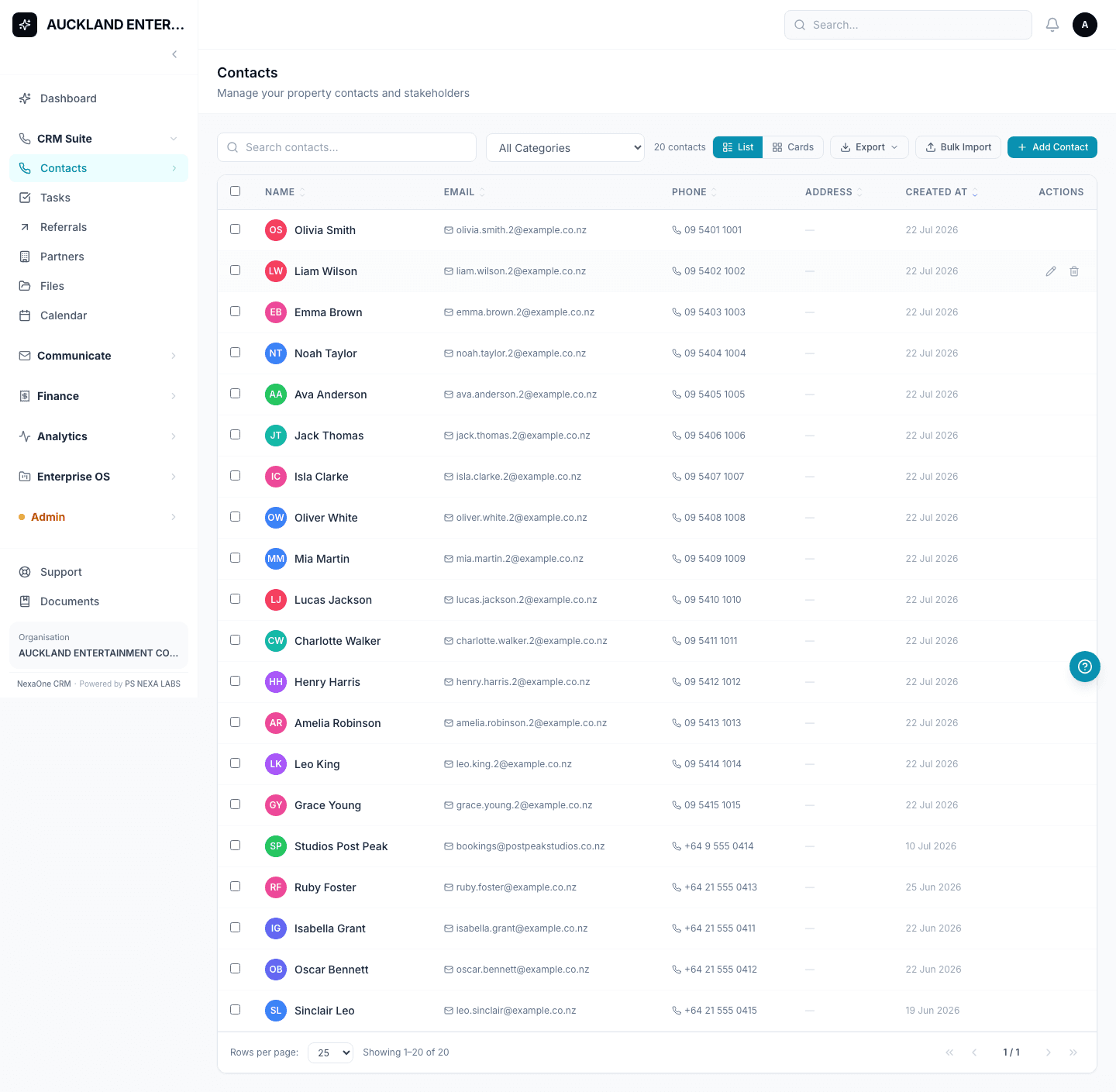
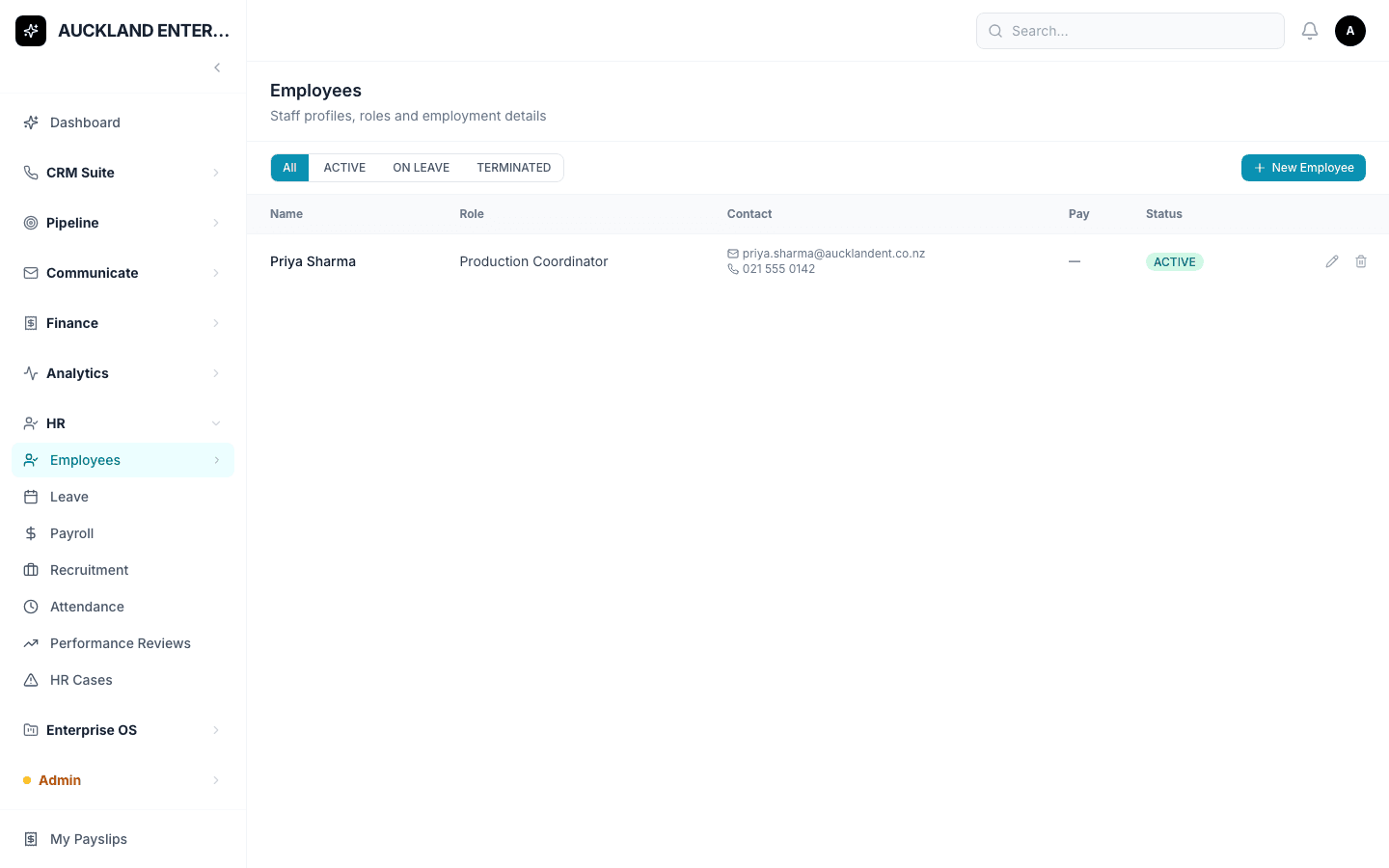
Click HR, then Employees, to see everyone on staff — name, role, contact details and status, all in one list. Adding someone is quick: click + Add Employee, fill in a first and last name (the only two things required), and add whatever else you know — email, phone, job title, department, start date, pay details. Save, and they're on the list.
Requesting and approving time off
Leave requests work the same simple way. Click New Request, pick the employee, the type of leave, and the start and end dates, then save — a manager can approve or decline it from that same screen, without a separate email thread going back and forth.
Running a pay cycle
Payroll starts with New Pay Run — set the pay period and payment date, and save to create a draft payslip for every active employee. Check the figures, click Approve, then Mark as Paid once it's done. One thing worth taking seriously: the tax figures are a starting estimate for New Zealand tax rules, and the system itself says to double-check them before finalising — not something to click through on autopilot.
Hiring, attendance and reviews too
Recruitment keeps job postings and applicants together, so a hiring manager can click into one posting and see everyone who's applied. Attendance lets staff clock themselves in and out, with a manager approving the daily records — though right now, if someone forgets to clock in, there's no button for a manager to add it on their behalf; that one goes through your admin instead. Performance Reviews works similarly: click New Review to start one, then add ratings and comments as it progresses.
A private space for sensitive matters
HR Cases is a more private area for sensitive staff matters — you'll only see cases that are your own, assigned to you, or, if you're an admin, all of them across the organisation. Click Raise Case to log a new one.
Not every business needs all seven parts of HR switched on at once, and each one can be turned on separately — so it's normal to only see a few of these on your own menu.